
Connecting a module to an existing table or a new table - NEW
Connect a target database to a module from a source database to sync exposed data
To connect a module
When you connect a module for the first time, all fields you map through the module interface are added to a new table by default. Choose Create new table if your existing tables don't contain any business logic yet, or if you want to rebuild some or all of your current business logic.
- From workspace home, click the card of the target database.
- Toggle on Edit mode.
- Click the Configure modules card.
- Select a module, then click the Next button.
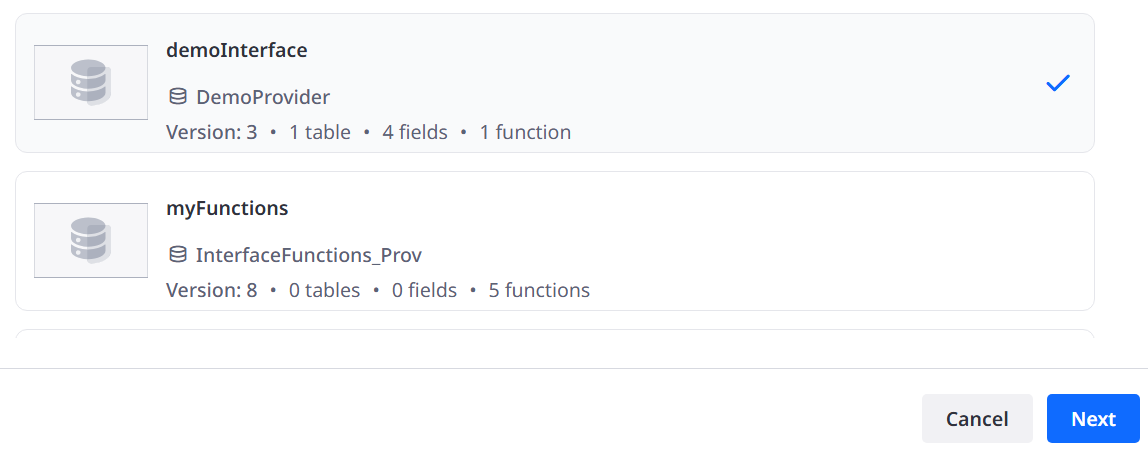
Here you will see an overview of all the tables that are exposed in the interface. You can select which tables to integrate by ticking the respective boxes.
Create a new table
You can specify which fields will be integrated by clicking on Fields for the respective table. This opens a menu in which you can select or unselect fields as per your preference.
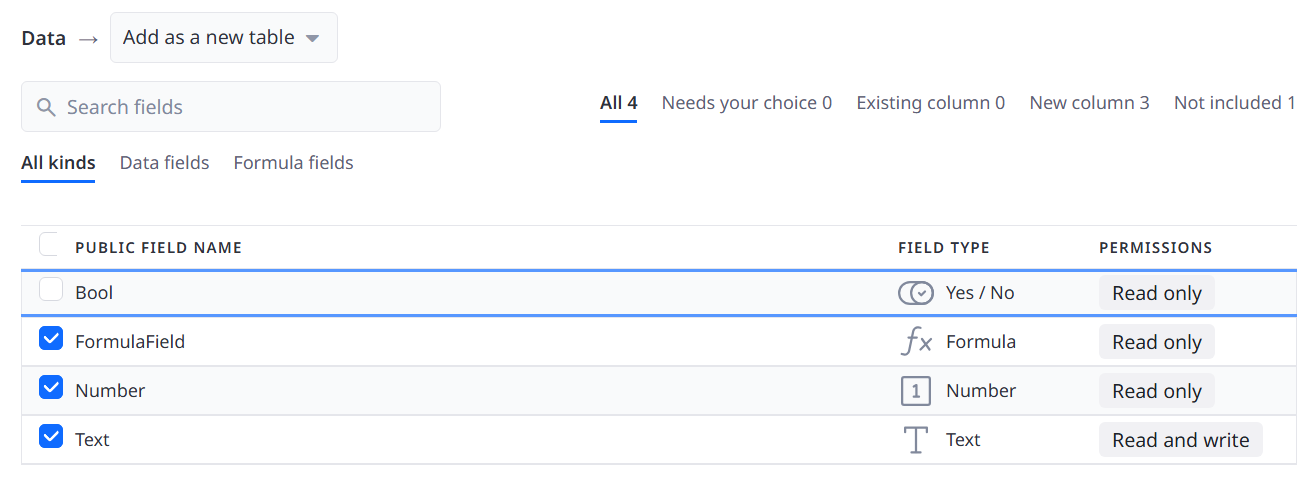
You can also filter the list of fields for either only Data fields or only Formula fields by viewing the respective list tab. You can move back to the tables list by clicking Back in the bottom left.
Map to an existing table
In the same menu via the drop-down next to the table name (or in the previous one if you click on New table right next to Fields) you can choose to map the table to an existing one in the consumer instead of creating a new one.
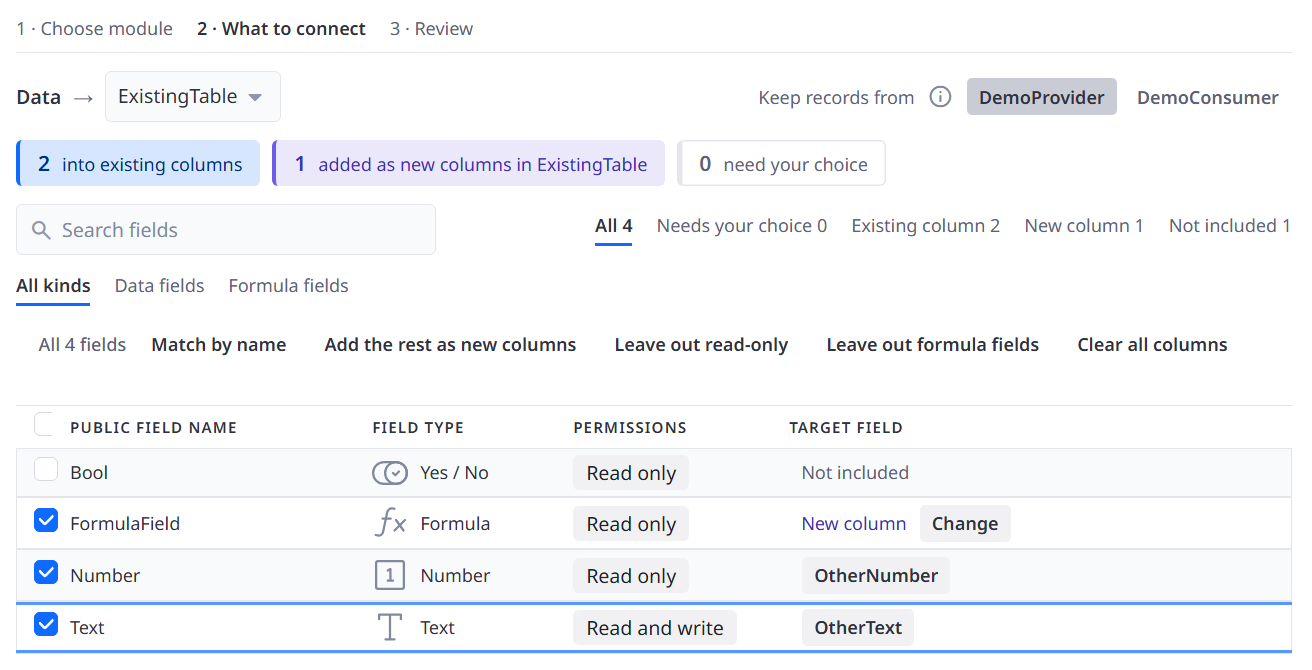
After you have selected the table to which you want to map, the menu switches to a mapping overview in which you can click Change for any exposed field to select which column it will be mapped to. If unchanged ("New column") a new field will be created. You can only select columns of the same type as the exposed field. Via Keep records from you can also determine whether the consumer's or provider's data should be kept.
Select global functions
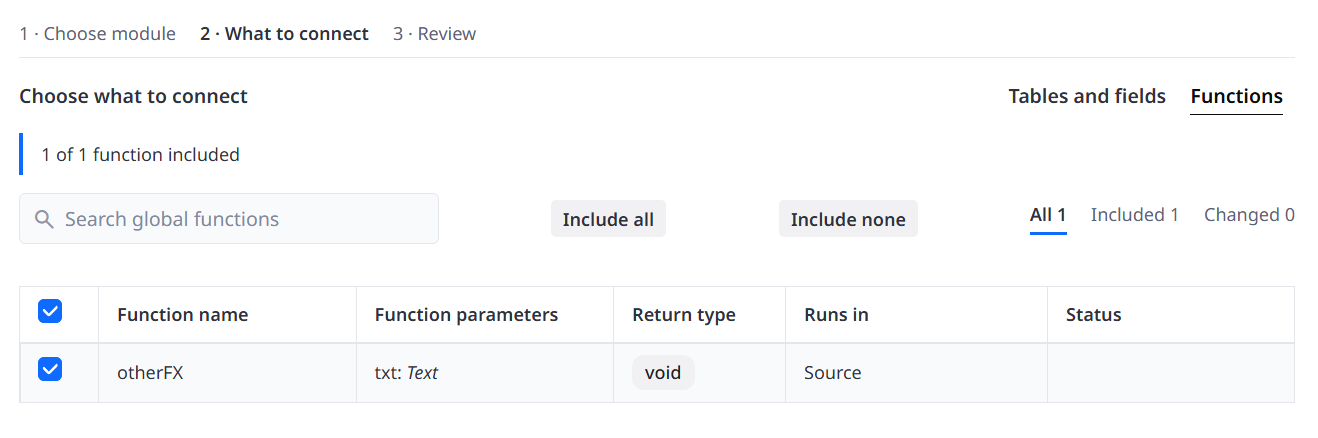
If you want to integrate global functions which you have exposed in the interface, click on Functions to move to that tab of the module assistant. Here you can deselect any function that should not be included.
Review changes
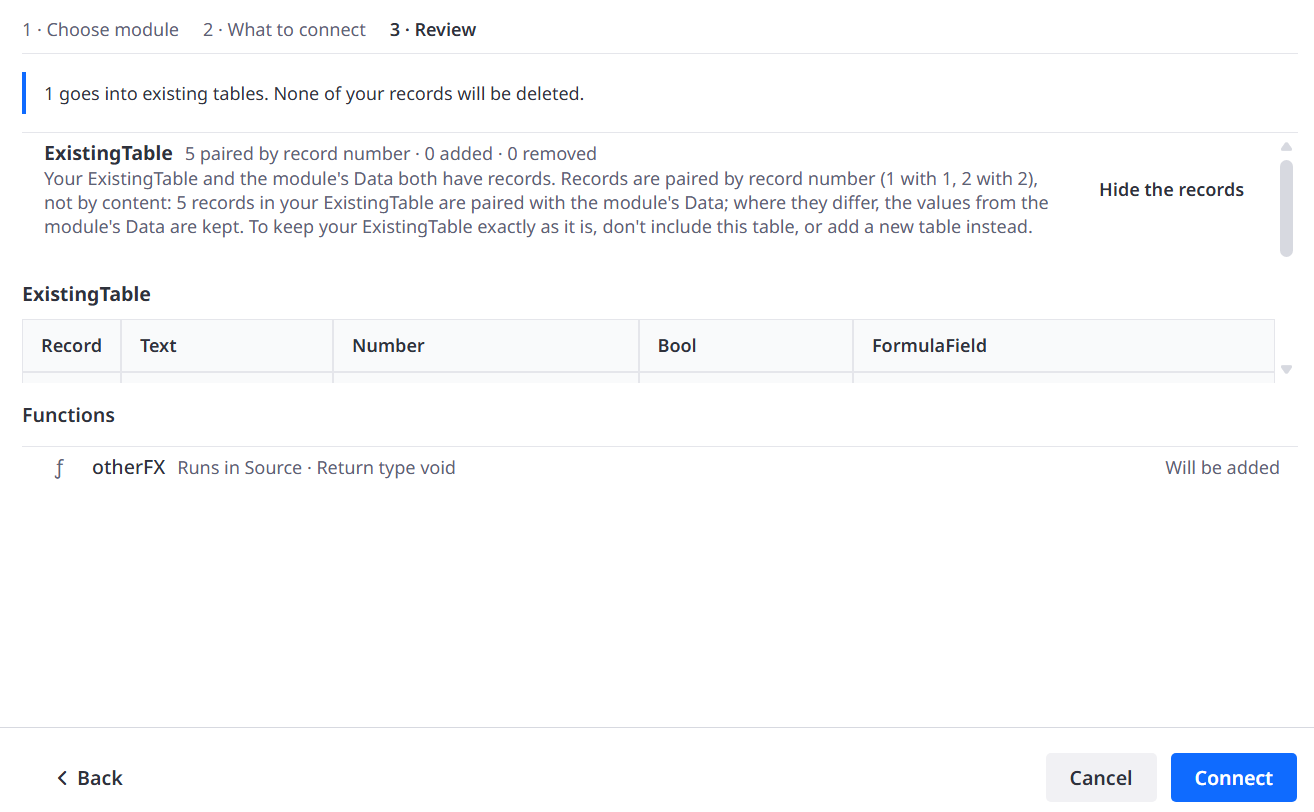
Once you have made your selection for each table and function, click Next once more to review the changes. If anything needs to be adjusted, click Back to make the necessary changes. An overview of records can be seen for each table via Show the records. Once all is set up as intended, click Connect to effect the change.
To modify a module connection
You can also modify an existing connection after it has been established. To do so follow the same four steps as laid out previously to open the settings of that module in the consumer database. Here you will see the same state as when the module connection was most recently set up and saved.
Add or remove fields
You can now click on any table and either add or remove fields from the connection. In the latter case you will see a popup to inform you that the respective field will remain in the consumer database but not be updated anymore by changes made to same field in the provider database. This is intended to allow re-connection in the future.
Add or remove functions
You can also add or remove exposed global functions. In the latter case any script applying that function will seize to work until it has been corrected or the function has been re-added via the module settings.
Review
Just as before by clicking Next you will see an overview in which all changes will be listed. By clicking Connect the settings will update according to the changes made.
To update a module connection
If an interface has been updated on the provider side, the next time the module settings are opened in the consumer database, an Update prompt will be displayed for the affected module connections.

By clicking it, the connection assistant will open to an overview of all changes.
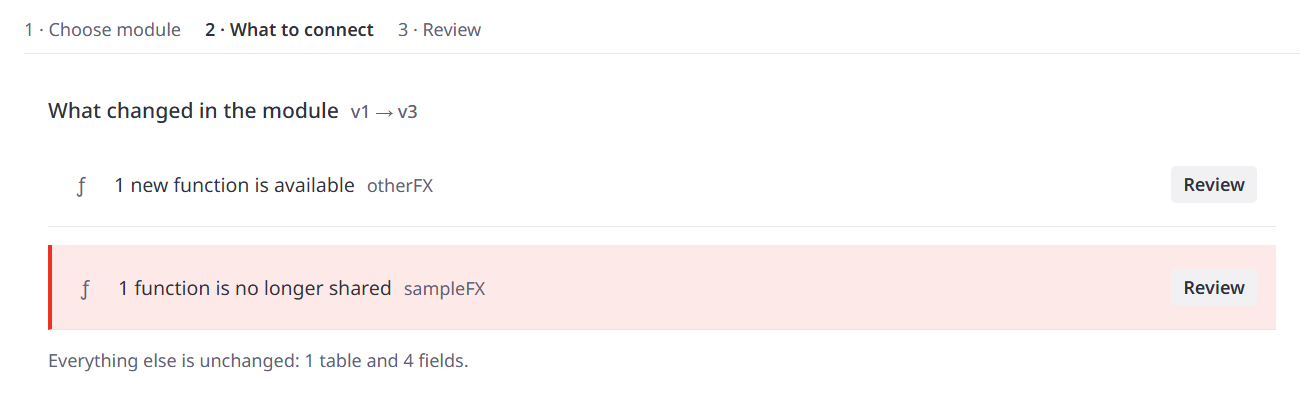
If you choose Review you'll be able to make additional changes to the connection as if you were merely modifying it. After clicking Next, Connect and Done again the respective changes will be applied in the consumer database.
To remove a module connection
Established module connections can be removed by opening the module settings of the consumer database an clicking Disconnect for the chosen interface.

No fields or tables will be removed, just their connection to the provider, making them independant fields and tables again. Any scripts using functions that were exposed in that interface will need to be corrected. At this point you will still be able to reconnect simply by following the steps of modifying the connection. If you instead choose Delete and confirm, any previous trace and metadata of the module connection will be removed from the consumer database.