
Understand storage usage and backups
This article explains how Ninox calculates storage usage, how backups affect your total usage, and how storage works on Public Cloud and Private Cloud subscriptions. It also outlines what to do if you reach or exceed your plan's storage limit. All information in this article applies only to cloud instances.
How Ninox stores data
Ninox uses deduplication to store data efficiently. Instead of saving identical data multiple times, Ninox stores the data once and creates references to it across your database and backups. These references show where the same data is used.
With deduplication:
- Shared data between the database and backups is counted only once.
- Creating a backup does not initially increase storage consumption significantly, provided that the data and, in particular, file attachments have not changed.
- Storage usage increases only when new or modified file attachments or data is added.
- Deduplication is particularly effective when many file attachments are stored.
Because of deduplication, your usage may not change immediately after creating or deleting backups.
Important: Ninox automatically optimizes and compresses databases from time to time, which can lead to changes in the stored data areas. Therefore, the storage consumption for individual backups may increase with increasing storage duration.
Backup types
Ninox provides two types of backups to protect your data.
Automated backups
- Created automatically.
- Public Cloud (Starter and Professional): Always enabled.
- Private Cloud (Enterprise): Can be enabled or disabled for all workspaces in the cloud instance in Ninox settings > Configuration > Advanced settings.
- Deleted automatically after 30 days or when the related workspace is deleted.
Manual backups
- Created manually by users.
- Kept until deleted by users.
You can delete both types of backups at any time by selecting Manage backups when opening your workspace.
How to check your storage usage
You can view your storage usage at any time in Ninox settings using the following steps:
- Go to your Ninox settings.
- In the left sidebar, select Subscriptions.
- At the top, select Usage overview.
ℹ️ Note: Usage data refreshes automatically at least once per day.
On the Usage overview page, you can see:
- Your total storage used and your subscription's available storage space
- A breakdown of storage used by category: database, manual backups, and automated backups
- A table listing each workspace and its individual storage usage
To view more details, select a workspace in the table to see its database usage breakdown.
✅ Tip: The Usage overview page also shows quotas and usage for other features, such as API calls, emails, and dynamic print layouts.
How storage usage is calculated
Your total usage includes:
- Data and attachments (current database content)
- Manual backups
- Automated backups
Workspace storage usage = data and attachments + manual backups + automated backups
Total storage used = combined usage of all workspaces
Deduplication ensures identical data is counted only once, so usage increases only when new or changed data appears.
How data is counted in overlapping areas
If the same data exists in multiple places (for example, in the database and in backups), Ninox counts it once toward your storage usage, following this priority:
- Database
- Manual backups
- Automated backups
This means:
- Data already counted in the database isn't counted again in backups.
- Only data that exists exclusively in a backup contributes to backup storage.
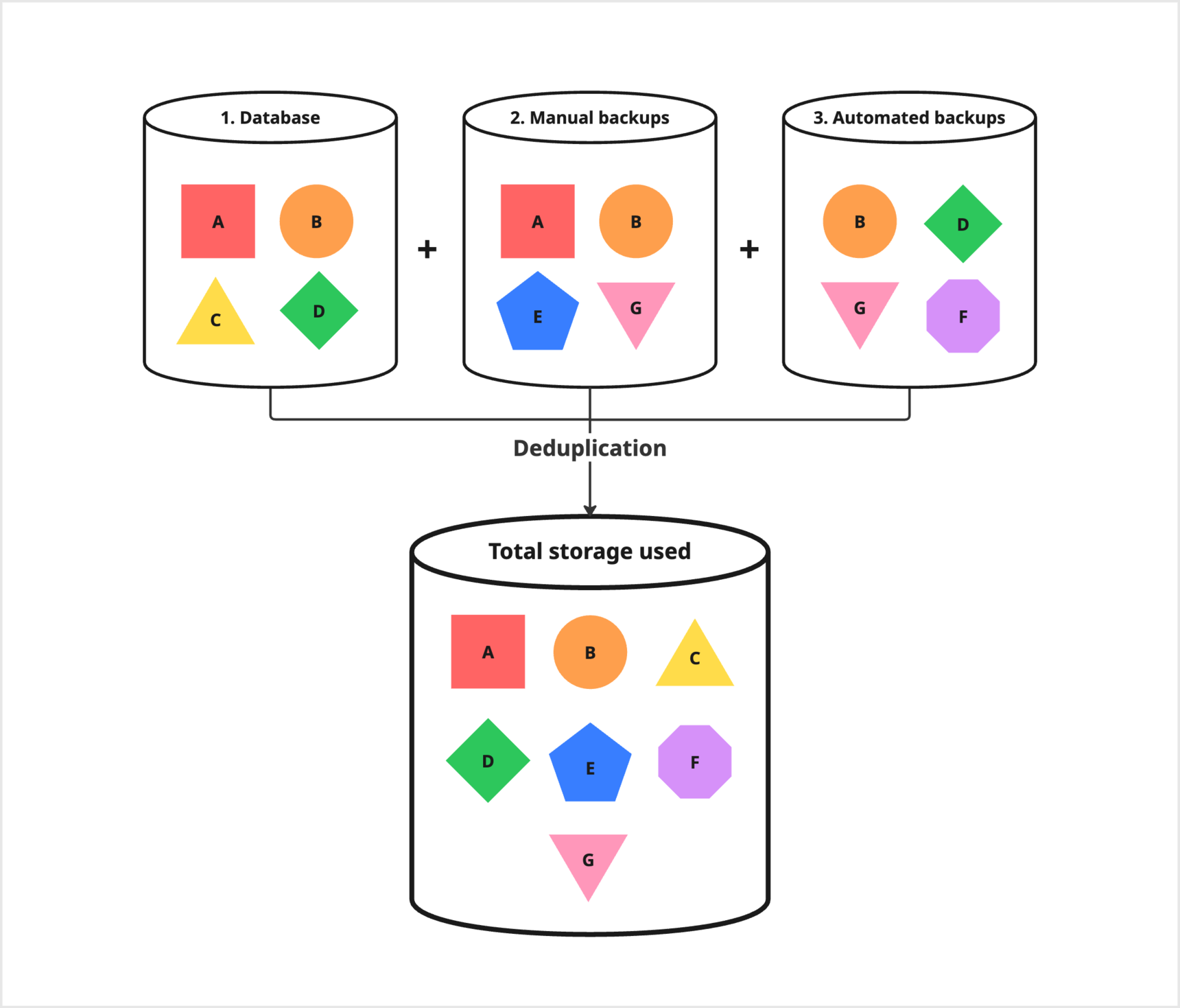
Deduplication stores identical data only once. Backups reuse the same stored data, so only new or changed data increases your total storage used.
Storage behavior on Public Cloud vs. Private Cloud
Public Cloud (Starter and Professional)
- Storage space scales with the number of licensed users:
- Starter: 1 GB per user
- Professional: 2 GB per user
- Automated backups are always enabled.
- Additional storage can't be purchased separately.
- To increase your storage limit, add more licenses to your subscription.
- All workspaces under your Ninox account count toward your total storage usage.
Private Cloud (Enterprise)
- Storage space scales with the number of licensed users:
- Enterprise: 5 GB per user
- Additional storage can be purchased in 100 GB units.
- Automated backups can be enabled or disabled for all workspaces in the cloud instance in Ninox settings > Configuration > Advanced settings.
- All workspaces in your Private Cloud instance count toward your total storage usage.
FAQ
Why doesn't storage increase when a backup is created?
If the backup contains the same data as your database, deduplication ensures that the data is stored only once. Storage usage only increases when the backup contains unique or changed data.
Why does my manual backup usage increase even if I haven't created new backups?
If you delete data from the active database but it still exists in older backups, that data is no longer counted in the database and instead counts toward your backup storage.
Why doesn't my storage usage decrease after I delete a backup?
To free up space, all references to the data must be removed. If the data still exists in the database or another backup, it continues to contribute to your usage.
What can I do if I'm reaching or exceeding my storage limit?
You can:
- Delete unnecessary data or backups.
- Delete manual or automated backups you no longer need.
- Add more licenses (Public Cloud and Private Cloud).
- Purchase additional storage (Private Cloud only).
How do I change my subscription or purchase additional storage?
Go to Ninox settings at admin.ninox.com.
- Public Cloud:
Go to Subscriptions to upgrade or adjust the number of licenses. - Private Cloud:
Go to Private Cloud Management (accessible through the Public Cloud Ninox settings) to upgrade your subscription or purchase additional storage.