
How to: Create an app with the AI assistant
With Ninox 4, the benefits of AI are now integrated directly into the Ninox workflow. While the assistant can write scripts and analyse data, its primary purpose is to create apps based on a prompt.
To create a new app, open any workspace where you have admin access. Click "Create app with Ninox AI" to open the chat with the assistant.
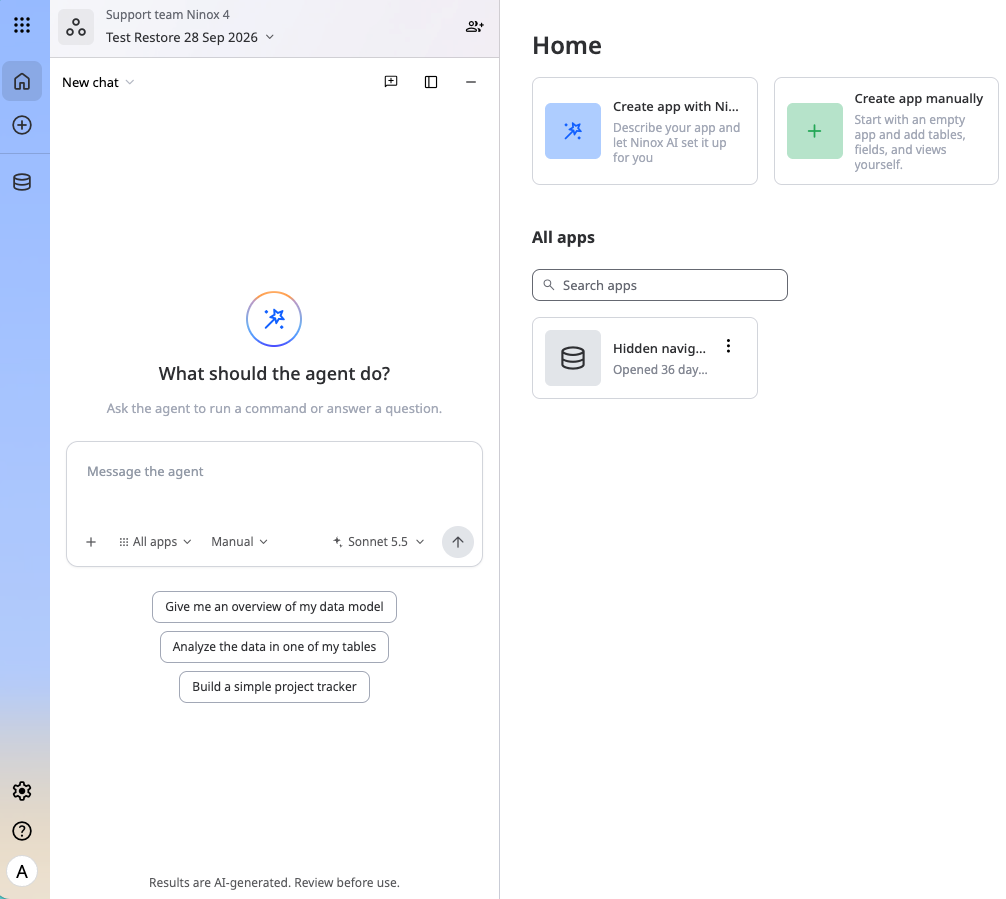
You tell the AI what kind of app you want to build and which features it should have, for example:
Create an app where I can manage my vehicle fleet. I need tables for vehicles, trip planning, employees, and employee driving licences. Add any other useful tables. Create a dashboard where I can see which vehicles are currently on the road.
Using the buttons below the text input, you can select the AI model and choose whether the requested actions should be carried out directly (Auto) or only after confirmation from the user (Manual).
Once you submit the request, the assistant processes it and generates a preview of the data model.
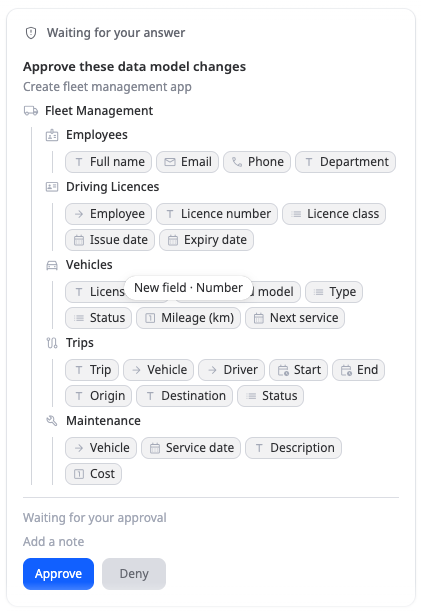
This data model already largely matches what we had in mind. The assistant has created the necessary relationships between the tables and has also added a Maintenance table. Click Approve to confirm the creation of the app.
💡 Note: AI output is always randomised to a certain degree. This means that the assistant may suggest a different data model when using the same prompt.
In the next step, the assistant addresses the request for a dashboard.
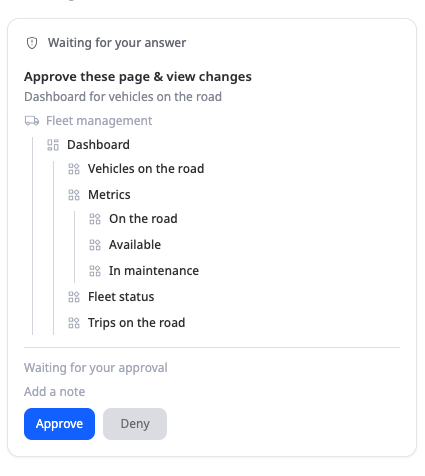
This can also be added to the app by clicking Approve.
After approval, the assistant provides a summary of the steps it has carried out.
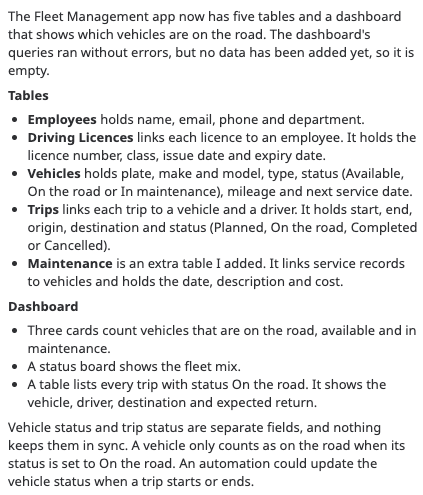
The app does not yet contain any sample data, so the assistant offers to add some, or you prompt it to do so. If you confirm this suggestion, or use the pre-prepared prompt, the assistant prepares the sample data. You can then confirm this by clicking "Add sample data".
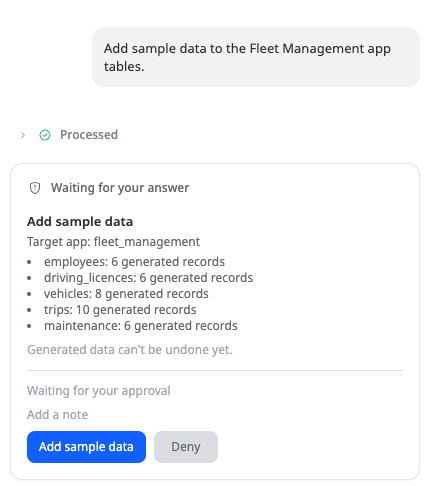
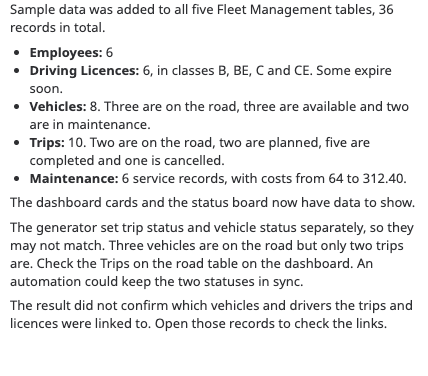
The assistant then provides another summary of the actions it has carried out.
If you no longer need any further help from the AI, you can close the assistant by clicking the minimise button in the top-right corner of the chat window. The conversation is saved and can be continued at any time by clicking the Ninox AI icon.
You can now either start working with the app straight away or make further manual adjustments if needed. How best to approach this is explained in detail in our documentation.
Reply
Content aside
- 6 hrs agoLast active
- 3Views
-
1
Following