
3

Ninext: bugs & fixes

I am opening this discussion so that everyone can post here the issues they encounter with the Ninext plugin version starting from version 3.x.

If you are using Ninext version 2.x, please post your message here instead: https://forum.ninox.com/t/p8h78zv/ninext-project

5 replies

null
    • Aron
    • 2 wk ago
    • Reported - view

    1.

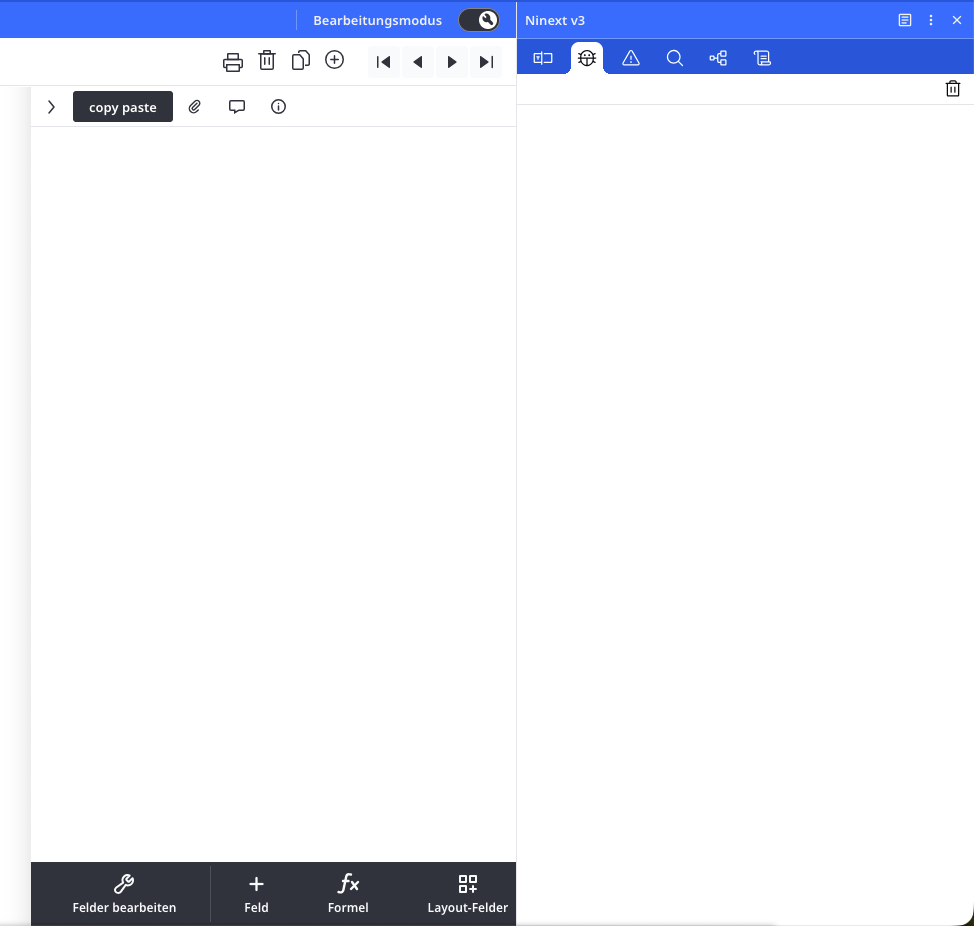
    When the Ninext console is open, it hides the table tools. It would be great if it could remain visible without blocking access to other controls while developing.

    2.

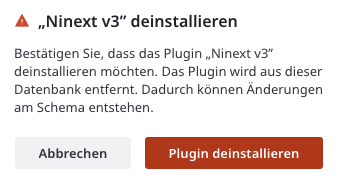
    On uninstalling plugins, what changes in the database schema are expected and which implications might that have? Ninox is showing me a warning, but not telling me, what the actual risk is.
    3.

    I love the copy-paste functionality for fields. 🙏

      • Ninox developper
      • Jacques_TUR
      • 2 wk ago
      • Reported - view


      1. Ninext console hiding table tools

      Yes, this issue is already known by the Ninox team. They are currently working on a fix so that the console can remain open without blocking access to the table tools during development.

      In the meantime, you can install the classic version of Ninext, which does not have this behavior:
      https://docs.ninext.fr/classic-installation-50


      1. Uninstalling plugins and impact on the database schema

      When you uninstall Ninext, the database schema (tables, fields, relations) is not removed or structurally modified. Your data remains intact.

      However, you will lose all features injected by Ninext, including:

      • Badges on files, tabs, and buttons

      • Interception of onclick events on fields and views

      • Modules related to custom events (viewEvent, buttonEvent, etc.)

      • JavaScript calls using the #{ ... }# syntax

      The most critical point concerns these JavaScript calls:
      if your application relies on them for essential logic (calculations, automations, specific interactions), those parts will stop working after uninstallation.

      Additionally, some workspace-related settings will also be lost, such as:

      • The field selected during the last session

      • Filters defined in Code Finder

      • Custom representations created in the Schema tab

      These elements do not affect your data, but they may impact your development workflow and organization.

      The Ninox warning message is therefore preventive: it indicates that a plugin may affect functionality, without specifying exactly what. Before uninstalling, it is recommended to check whether your application uses #{...}# calls, extended events, or important interface customizations.


      1. Field copy-paste functionality

      Thank you 😊
      Yes, this feature really makes life easier. Many of us truly appreciate it!

    • Endo7_GmbH
    • 3 days ago
    • Reported - view

    Hello Jacques,
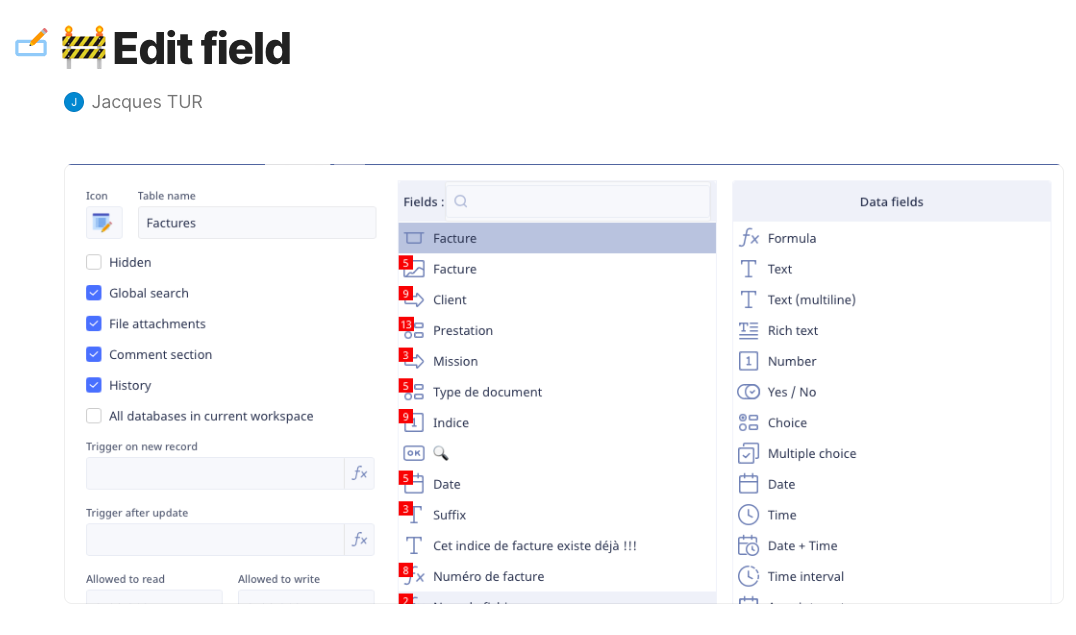
    Thank you very much for developing Ninext. I really appreciate the tool since it is provided directly by Ninox. There is one thing I don't understand: What do the badges in the field editor mean and what can I do with them? I just can't figure it out!
      • Ninox developper
      • Jacques_TUR
      • 2 days ago
      • Reported - view

       Thank you for your message and your enthusiasm for Ninext! 😊
      The badges in the field editor are part of Ninext’s Fields Inspector module. Here’s what they do and how to use them:
      What the badges indicate
      When you open the field editor of a table, small badges appear above the field names. Each badge displays a number representing the total number of dependencies for that field across your database — in other words, how many formulas, triggers, or scripts use it. This is a very useful impact analysis tool before modifying or deleting a field.
      The meaning of the colors
      The colors indicate the level of impact a potential modification would have:
          •    🔴 Red (highest level): the field is used in a formula or functional trigger (onClick, afterUpdate, afterCreate…). Any modification will directly affect the behavior and data of your database.
          •    🟠 Orange: the field is used in an interface trigger (visibility, canWrite, canRead, beforeShow, afterHide…). A modification will only affect interface behavior, not calculations or data.
          •    🟢 Green (lowest level): the field is only used for display purposes. A modification will only impact visual presentation, without touching data or interface behavior.
      What you can do with them
      By clicking on a badge in the field editor, the Ninext panel opens automatically on the Fields & Fx tab, with the corresponding table and field already selected. You then see the complete list of all its dependencies.
      From there, you can go even further: hovering over a result row reveals a “Modify” button. Clicking it opens the source code containing the dependency directly, with the relevant part highlighted — very handy for quickly understanding and addressing the impact of a change.
      You can also use the Fields & Fx tab directly from the Ninext panel by manually selecting a table and a field from the dropdown menus, without going through the field editor.
      You can find the full documentation for this feature here: https://docs.ninext.fr/fields-and-functions-9
      Don’t hesitate if you have any other questions! 🙌

      • Endo7_GmbH
      • 2 days ago
      • Reported - view

       Thank you very much for the detailed explanation! I didn't realise that I had to expand the Ninext window to see the dependencies. A really great and very useful tool, and very well thought out!

Content aside

  • 3 Likes
  • 2 days agoLast active
  • 5Replies
  • 103Views
  • 5 Following