
Ninext plugin v3.x Beta
🚀 Ninext 3.1.0 beta is available!
Hello everyone,
A beta version of Ninext 3.1.0 is now online. It brings several major new features and a solid round of fixes compared to 3.0.5. Your feedback on this beta is very welcome before the official release.
⚙️ Installation: to use this plugin, you first need to uninstall Ninext v3 and then install Ninext v3 Beta.
What's new
An interactive console to run Ninox code
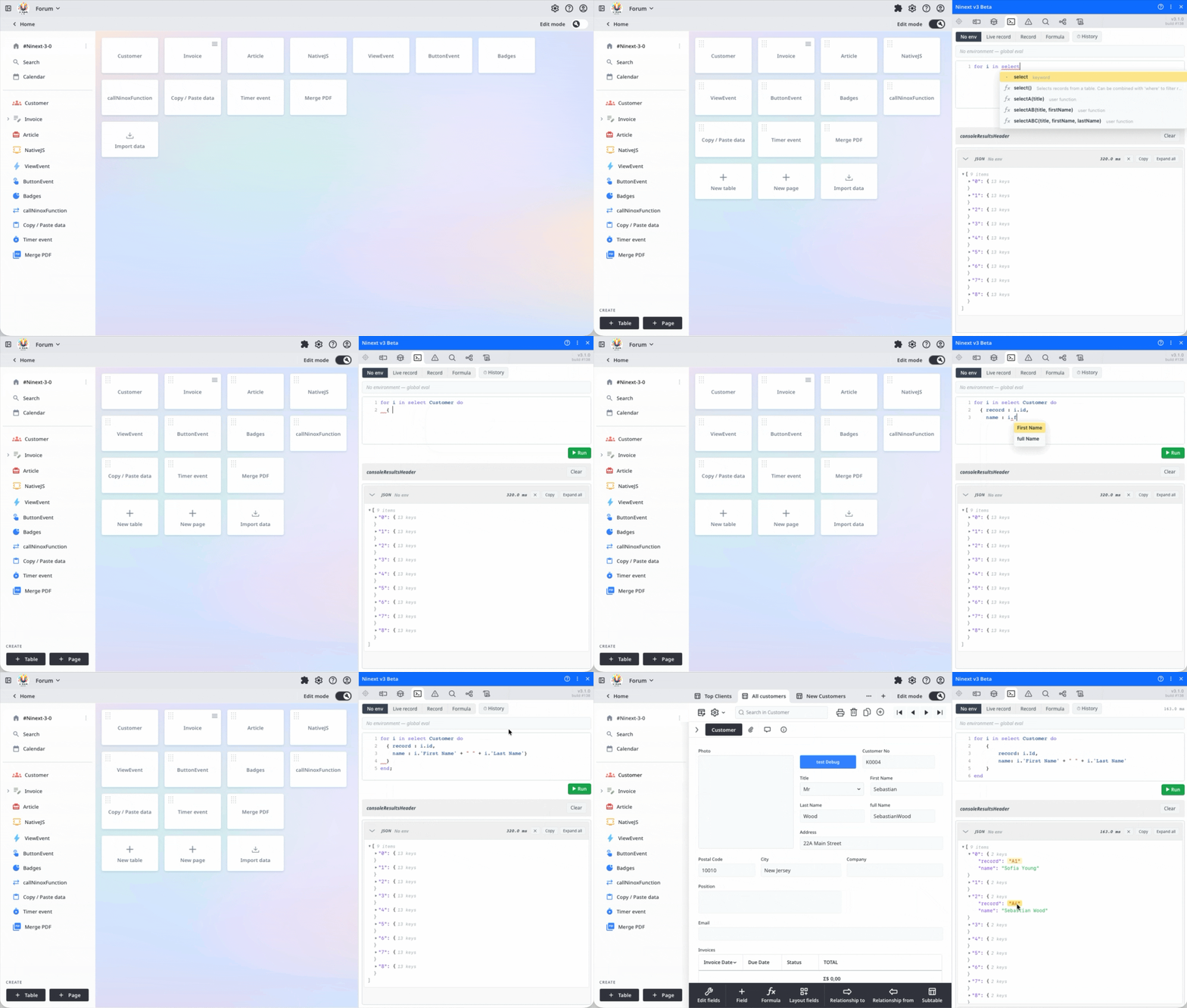
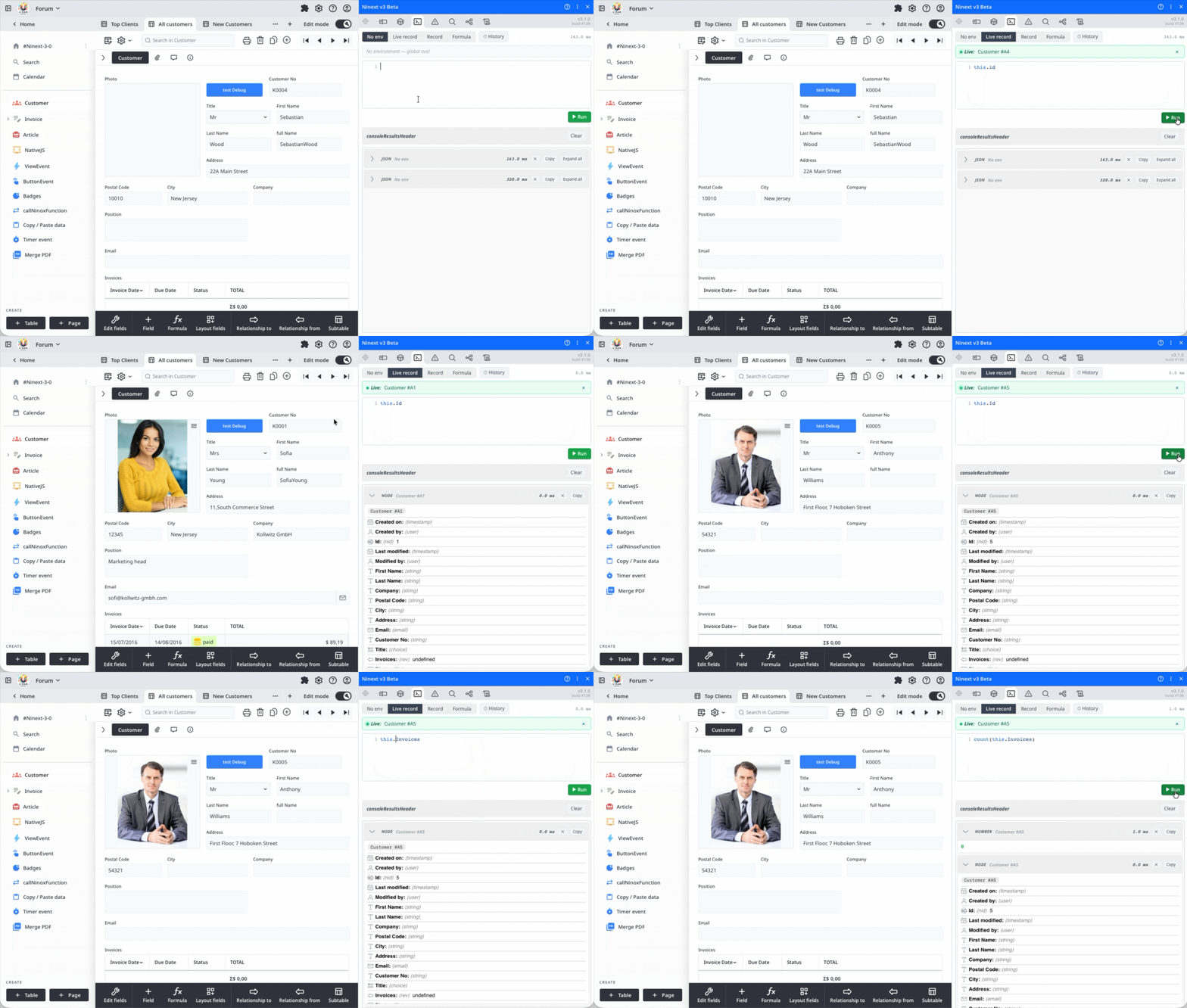
A new "Console" tab lets you write Ninox code and run it on the fly, like an interpreter. The execution context is configurable:
- Live ⚡ — automatically uses the record currently open in Ninox (follows you as you switch records)
- Record — you pick the record yourself
- Formula — the context is defined by a formula you write
- None
The editor offers syntax highlighting, auto-completion, input help, error markers, a history of the last 50 commands (Alt + ↑/↓), and results displayed as raw value, expandable tree, or record table (with direct opening of records).
Visual and interactive dependency tree
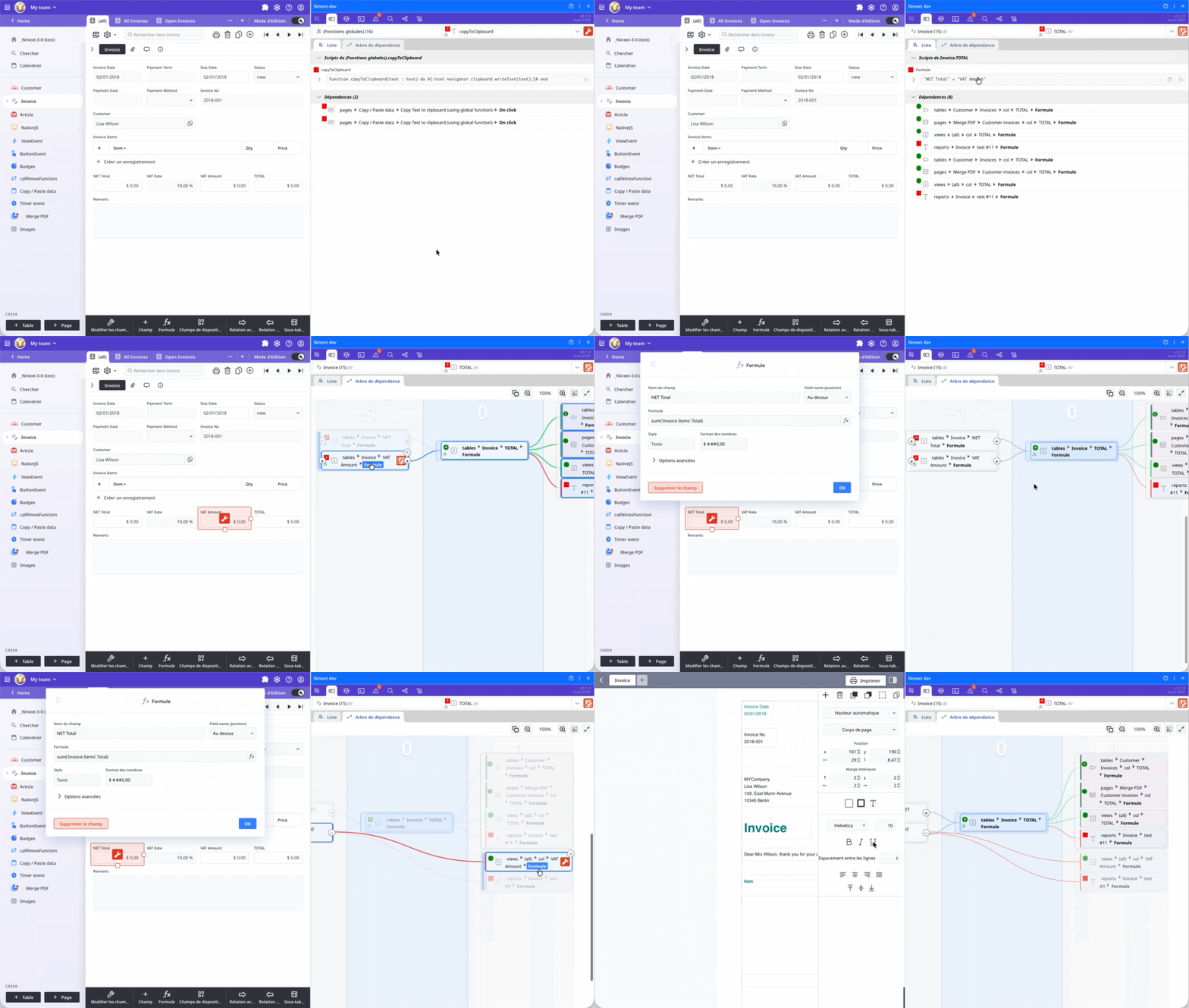
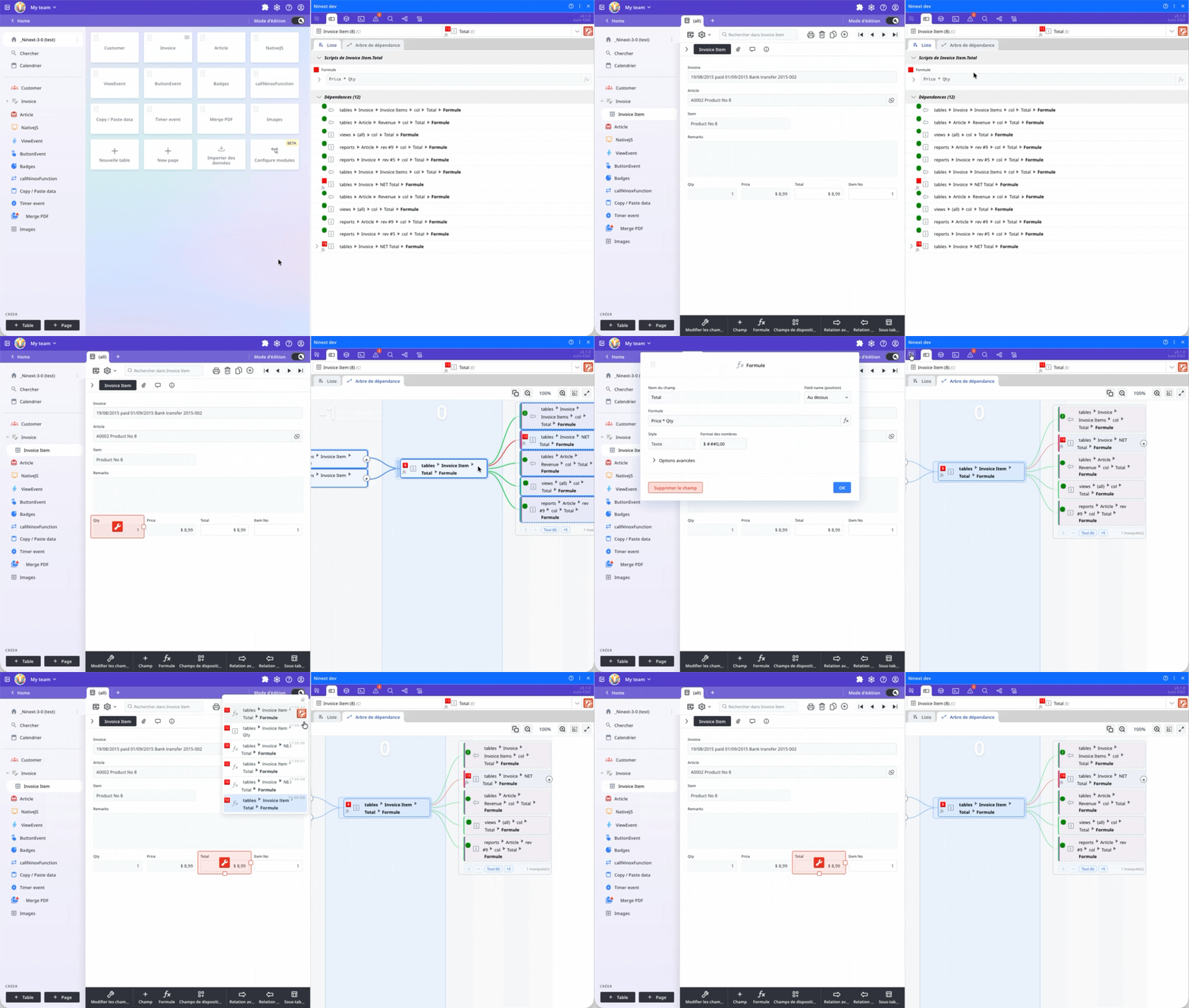
The dependency tree has been completely rebuilt. You can now explore dependencies downstream (as before: which formulas depend on a field) but also upstream (which fields feed a formula). It's available as a hover preview on a field and as a full tab inside Fields & Fx:
- Cells sharing the same parents are grouped into clusters you can drag with the mouse
- Memorization of positions, hidden cells and pagination
- Colored level bands (-2, -1, 0, +1, +2…), chain highlighting on hover, secondary branches dimmed
- Fullscreen mode, image copy (PNG, SVG, or clipboard)
Information badge on field hover
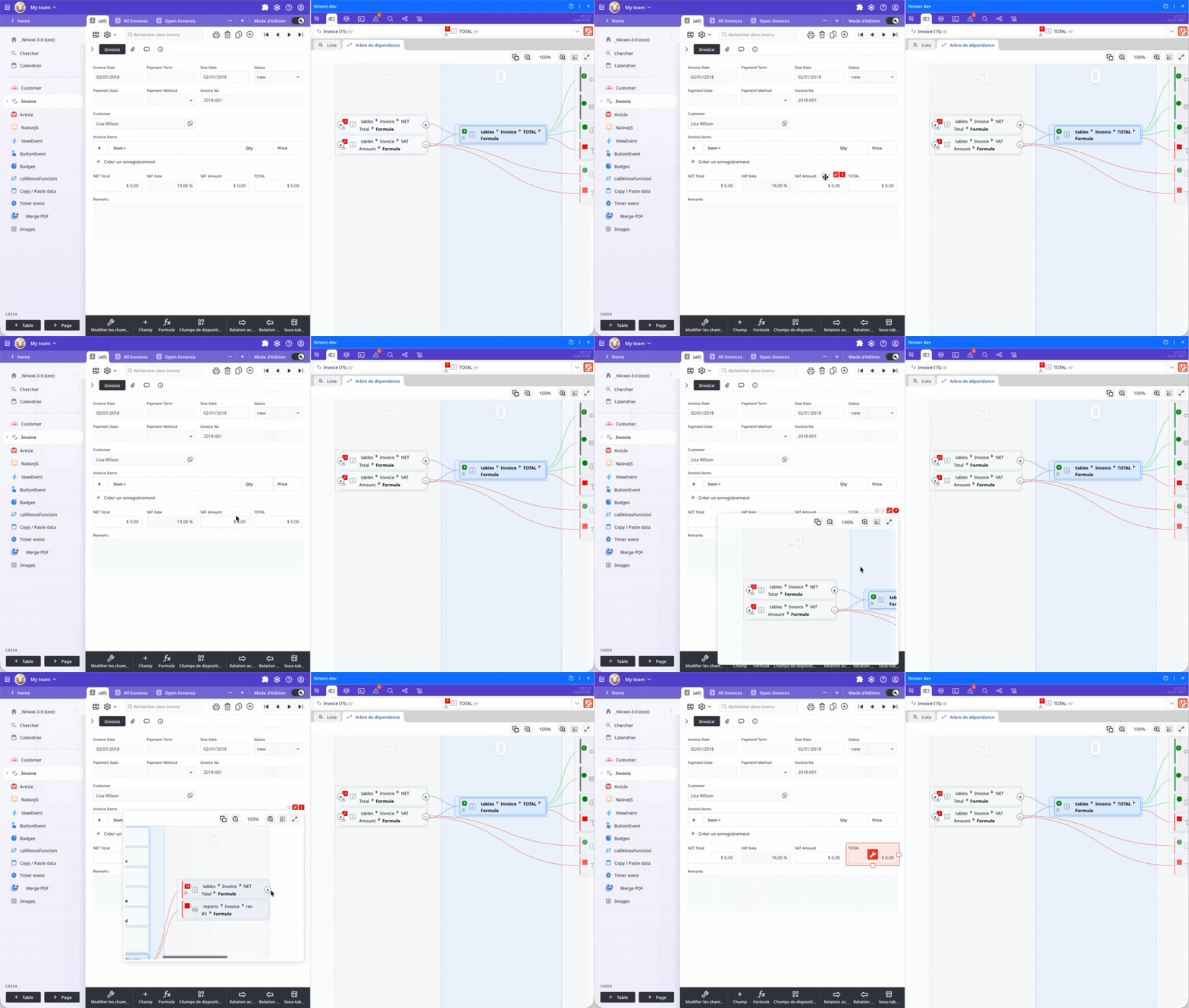
In admin mode, a badge appears when hovering a field and gives 4 shortcuts — no need to pre-select the field to edit it:
- Returned type of the field (or declared type)
- Full formula in a tooltip (syntax-highlighted, with a Copy button) — click to open the Ninox formula editor directly
- Key button to open the Ninox field editor window directly
- Dependency counter (color = criticality level) — hover for the graphical preview, click to select the field in Fields & Fx
The Finder now explores reports too
Search and the dependency tree now analyze the content of Ninox print reports: text templates with formulas in braces, formula-generated HTML blocks, revision columns, image fields with formula, and Carbone data sources.
Note about Carbone: only the data source formula is analyzed. The names of fields inserted in the Word file are not yet accessible to Ninext.
Field navigation history
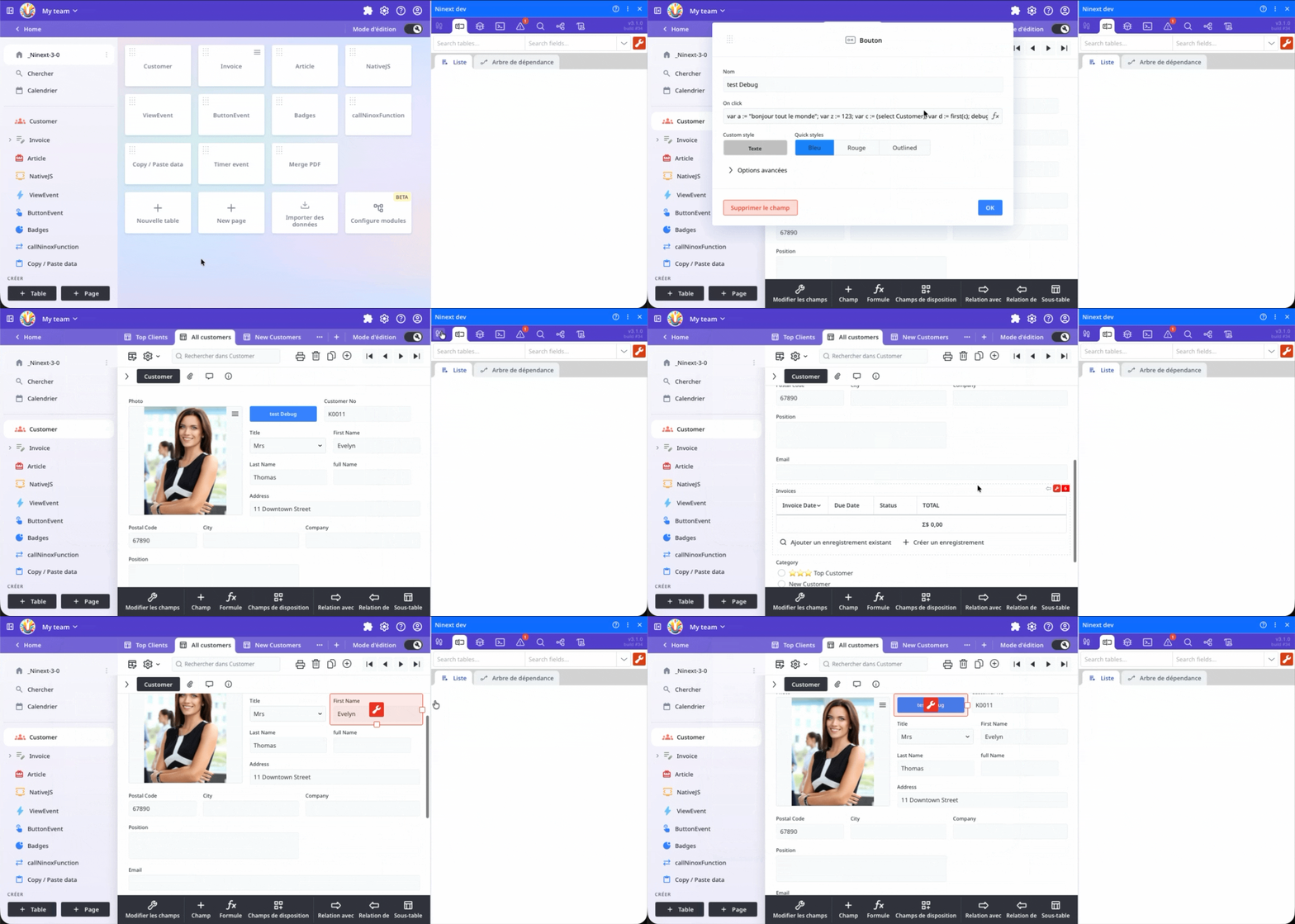
An icon in the Ninext panel header opens the list of fields you have already visited through Ninext:
- Up to 50 entries kept throughout the day
- List with timestamps and breadcrumbs, plus a button to clear history
- Also tracks reports, global functions and the After Open trigger
Heads-up: fields opened directly from Ninox (without going through Ninext) are not yet recorded in the history.
Code Finder: search history and saved preferences
- Last 20 searches in a dropdown
- Per-database memorization of search preferences (regex, case sensitivity, whole words, filters)
- Result pagination in batches of 100
Support for external databases
When your database uses fields or tables from other databases of the same team, they now appear in the Fields & Fx list and in the dependency graph, marked with a dedicated icon.
New onNinextLoaded hook in the After Open trigger
If you define an onNinextLoaded(event) function in the After Open trigger of your database, Ninext automatically calls it once it is truly loaded and operational. The current Ninext version is passed via event.version.
Why it matters: when Ninox starts up, the After Open trigger runs before Ninext is installed. As a result, NativeJS is not yet operational at that point, and any JavaScript code depending on it silently fails if you try to run it directly from After Open.
With onNinextLoaded, you finally have a reliable entry point to:
- run JavaScript code through NativeJS at startup, knowing for sure that Ninext is ready
- adapt your database's behavior based on the detected Ninext version (
event.version) - trigger initializations that depend on Ninext features (badges, console, history, etc.)
Minimal example:
function onNinextLoaded(event : any) do
   alert("Ninext " + event.version + " is ready");
   " … your JavaScript / NativeJS code here";
end;
This is a beta — we'd love your feedback!
If you give this version a try, please report any unexpected behavior, improvement suggestion or new idea:
- Directly in this forum thread
- info@umangenius.com
Many thanks to everyone who takes the time to test it.
Happy testing!
8 replies
-
🔧 Ninext 3.1.1 is available
Hello everyone,
Here is Ninext 3.1.1, following 3.1.0. It brings a few improvements (multilingual help, support for the After Open trigger, a clearer dependency tree) and, above all, a solid round of fixes to make the Errors tab, buttons, view clicks and help page more reliable.
⚙️ Installation: uninstall the previous version of Ninext, then install Ninext 3.1.1.
New & improved
Ninext function documentation is now multilingual
The help for Ninext-specific functions is now available in 10 languages (French, English, German, Italian, Spanish, Catalan, Polish, Russian, Simplified and Traditional Chinese). It automatically follows your Ninox language, with no need to reload the plugin.
The "After Open" trigger in Fields & Fx and the dependency tree
The database "After Open" trigger now appears as a dedicated entry (next to Global Functions) at the top of the Fields & Fx list, with its own icon. Its content is analyzed by the Finder, so you'll find it in search and in the dependency tree. A natural complement to the
onNinextLoadedhook introduced in 3.1.0.Dependency tree: more precise highlighting
In multi-level trees, each cell now highlights the name of its direct parent (the field or formula it depends on), instead of always highlighting the central field. Dependency chains are easier to follow.
Console: date and time on every result
Each result shown in the Console now displays its full date and time, next to the execution time. The information is preserved after the database is reloaded.
Fixes
Reliable "Errors" tab
- No more false errors at startup. The tab could show "ghost" errors (typically NativeJS formulas
#{ … }#wrongly flagged) when the database loaded, and stay stuck on them until you edited the schema. Fixed: these transient errors now clear by themselves once the database is truly loaded. - Consistent error count. At startup, the announced count could mismatch the displayed list (e.g. 5 lines shown but "1 error"). The counter and the list are now always in sync.
- Cleaner layout. A single separator line between errors instead of two.
Custom buttons (
onUpdate)A button's caption, color and badge are again applied correctly when your
onUpdatefunction does asynchronous work. Previously they could fail to show.Many thanks to Bob for reporting this bug and for his patience!
View click (
onclick)Fixed a case where an asynchronous
onclickcould trigger the selection twice (the default selection and your custom one). The decision is now fully driven by your code.Help page
Fixed horizontal overflow of the help page and the rendering of code blocks and examples: long lines now wrap, and the stray separator lines between rows (inherited from Ninox's styling) are gone.
Change
Reworked navigation history
The history moves from a back / forward logic (the two ◀ ▶ buttons) to a "most recently used fields" (MRU) list, with a single button in the header:
- Each field you visit moves to the bottom of the list, with no duplicates.
- The bottom of the list therefore always reflects the fields (or global functions) you actually used last.
- Clicking an entry selects the field without reordering the list, and highlights that entry.
- Still up to 50 entries kept throughout the day.
Your feedback
Please report any unexpected behavior or suggestion:
- Directly in this forum thread
- info@umangenius.com
Many thanks to everyone who takes the time to test it. Take care!
- No more false errors at startup. The tab could show "ghost" errors (typically NativeJS formulas
-
said:
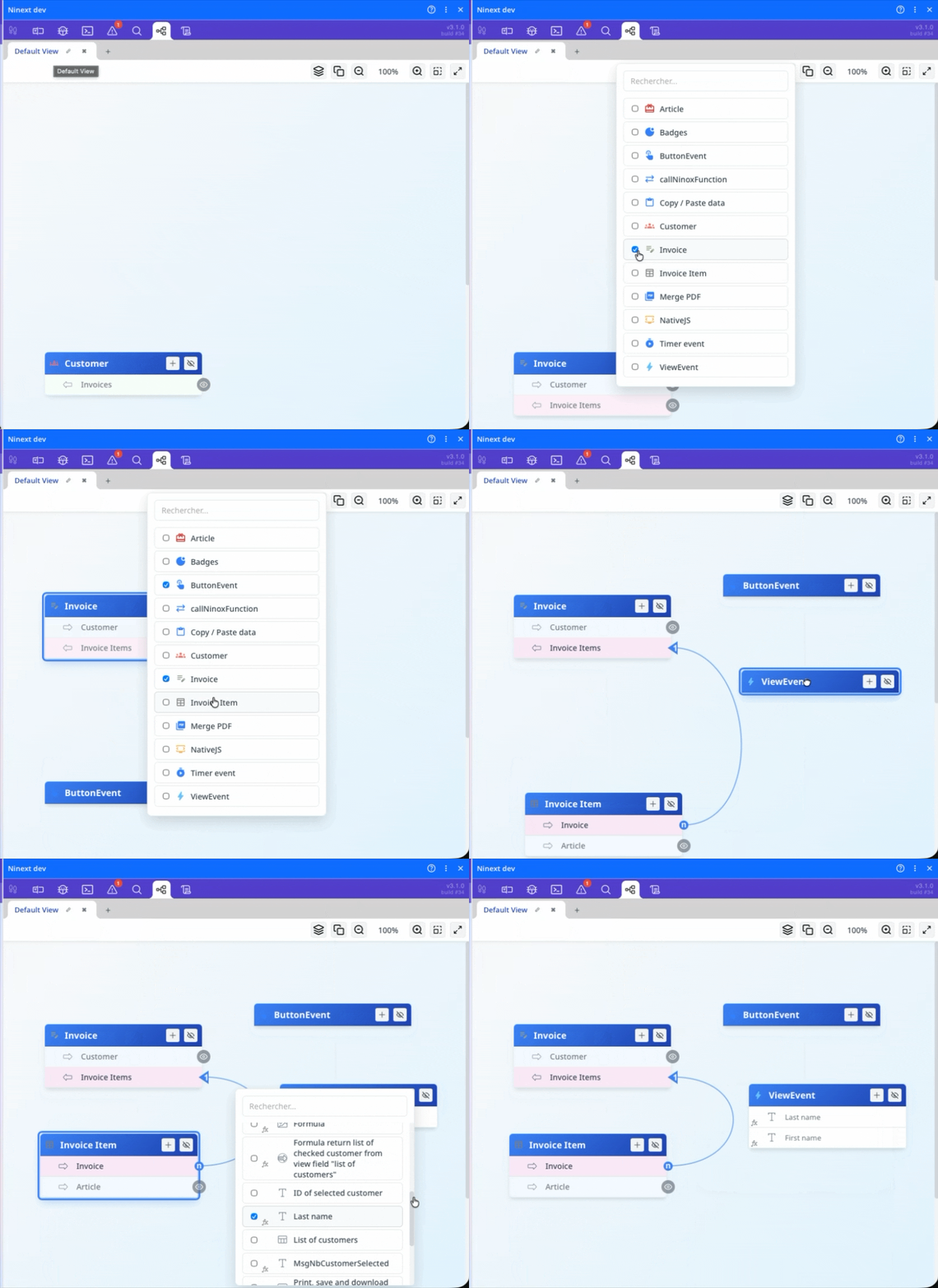
Jacques TUR I'm in the scheme overview and Ninext picked a random table for me. How do I get it to start at a table that I selected?The default table needs to be removed and another one displayed. Does this video help?
-
said:
I am moused over the Historique de Navigation, that didn't get captured in the screenshot.For the fields to be added to the browsing history, you must have selected them using Ninox. Selecting the fields with the Ninox button does not add them to the history list.
-
said:
Plus when I delete a view in the scheme the error message is in French.
Here is another text that is also in French:Thank you, I will add the multilingual translation for these two points and check whether there are any others to translate.
-
🧪 Ninext 3.1.2 (beta) is available
Hello everyone,
Here is Ninext 3.1.2: the tool keeps getting more polished, with targeted fixes and further performance gains. This release is currently available as a beta, while we validate it before the final release.
⚙️ Installation: simply click the plugin's Update button.
Fixes
- Field deletion while typing — in admin mode, pressing Delete / Backspace while you were typing text could open the delete-field confirmation dialog for the selected field. The key is now used only for text editing.
- Duplicate dependencies — in a field's dependency list, some entries appeared twice. Each dependency is now shown only once.
- The dependency tree no longer "jumps" — when it updates, it keeps the zoom and position. When you switch fields, the zoom is kept and the field is re-centered.
Performance
- 100% CPU / slowdowns — Ninext could max out the CPU and slow down the interface, sometimes with no interaction at all. The cause: a dependency-tree process that kept running in the background once the panel was hidden. This is fixed.
- Opening the selectors (tables, fields, expressions) — on large databases, the first display could freeze the interface for one to two seconds. It is now about 10× faster.
Your feedback
Please report any unexpected behavior or suggestion:
- Directly in this forum thread
- info@umangenius.com
Many thanks to everyone who takes the time to test it. Take care!
💛 Support Ninext
Ninext is an independent project that saves you time every day in Ninox. It's backed by no vendor: its regular updates rely solely on the support of its users.
If Ninext is useful to your work, you can help keep it going — every contribution directly funds maintenance and new features.
A few professionals already support Ninext — be among the first to join them.
👉 Support the development of Ninext
Thank you to everyone who makes this project possible!
-
🚀 Ninext 3.2.0 beta is available!
Hello everyone,
A beta version of Ninext 3.2.0 is now online. It's the biggest release since Ninext v3 was launched: the Console becomes a real debugging workshop for Ninox code, the Errors tab has been completely redesigned, the code editors flag errors as you type, and navigating to your code is far more reliable. Your feedback on this beta is very welcome before the official release.
⚙️ Installation: if you already use Ninext v3 Beta, simply click the plugin's Update button. Otherwise, uninstall Ninext v3 and then install Ninext v3 Beta.
📌 Good to know: the features that rely on the ninext.fr server (the AI assistant, AI tasks, real-time presence and schema history) already appear in the settings and in the function help, but they stay switched off for now: we don't hand out access tokens for this server yet. During the beta, all new features are open to everyone. Later on, some of them will require registration and a subscription.
What's new
A step-by-step debugger in the Console
The green “Run” button now offers three modes through its chevron: Run, Replay and Step by step. The chosen mode is remembered, and Ctrl + Enter launches it. In step-by-step mode, you follow your code one instruction at a time:
- Breakpoints set with one click in the gutter, conditional ones when needed (right-click or Alt + click: execution only stops there when your condition is true), and you can disable them without losing them
- As soon as a breakpoint is set, even “Run” stops there, then carries on step by step
- Sub-steps: move forward one sub-expression at a time, with the resulting value shown each time
- Step into functions and into schema formulas: their code opens in stacked frames, just like in Ninox, where you can set breakpoints too
- The value of every variable at each step, with its type; variables that exist but are out of scope are shown in grey
From the Ninox code editor, the “Debug in the Console” button takes your code there, with the current record as its context; from the global code, only the function where the cursor sits is taken.
Note: execution is really suspended at each pause, and the database keeps living meanwhile (other users, API).
A replay debugger
The code runs only once, in one go; you then walk through its execution forwards and backwards, with the same commands as the step-by-step debugger (Next step, Sub-step, Step out, Continue), plus “First step” and “Previous step”, and the same code frames. Ideal to understand what happened without running the code again.
Note: a record is shown in its current state, not as it was when the code ran.
A formula profiler
The new Profiler tab records formula evaluations and shows them as a timeline and a table: durations, number of calls, exact call chains. You finally see where the time goes, including in calls triggered by Ninext itself.
- Start immediately, on the first evaluation or on your next click; stop manually, after a few seconds, when the evaluation ends or when you release the mouse button: you only measure what matters to you
- Inspect: pick a formula, and at each evaluation the profiler records the values its variables take
- Zoom with the mouse wheel or the trackpad; clicking a row opens its details, from which you can jump to the code
A “Check” button
Check (Ctrl + Shift + Enter) compiles your code without running it — no effect on your data — then formats it, or underlines every error and moves the cursor to the first one. It also applies Ninext's own checks: code that cannot run on the server side, JavaScript syntax of native blocks, HTML and CSS passed to
html(). When two types don't match, the tooltip tells you which ones.Code editors that flag errors as you type
Errors and warnings are underlined as you type in Ninox's own code editors (large formula editor, field panel), not only in the Console:
- the line shows the severity: a red squiggle for an error, an amber dotted line for a warning; a ⛔ or ⚠ marker in the margin lists the line's diagnostics on hover
- occurrences of the selected word are highlighted, as in VS Code — in Ninox's editors, the Console and Ninext's code blocks
- the syntax help bubble stays visible in a long script you have scrolled down (it used to drop off the screen)
- when you hover a formula (“Fx”), its errors are underlined in the code shown
JavaScript autocompletion in native blocks
Inside a
#{ … }#block, the Console offers the same typing help as the browser console, adapted to what the block actually receives: Ninox variables and parameters in their JavaScript form,ui,database,callback, and object members after a dot.More readable results
- Returned records are rendered faithfully, as in Ninox views: conditional formatting, photo thumbnails, colour chips, column widths; the view tabs follow Ninox's order and hide the views you're not allowed to see
- One value tree now serves the Console, the debuggers and the Debug Tracer: every value can be copied, and a record opens with one click. A text containing JSON stays displayed as text; the “Tree” button unfolds it on demand
- A text longer than 100,000 characters shows up instantly, truncated, with “Show all” on demand; a waiting indicator appears during long evaluations
Your work follows you
On startup, the Console brings back your last code with its breakpoints and their conditions — each user gets their own on a shared computer. For administrators, this work and the code history also follow them from one computer to another, and survive clearing the browser's data.
- Code taken from the history is rebuilt in Ninox's current language: “Id” becomes “Nr” in German, “Last modified” gets translated. Before, code recalled after a language change no longer compiled.
- A history line can be deleted with one click, and a “Copy” button appears when you hover the editor.
Note: this history is saved in the plugin settings, which every user of the database loads. Avoid leaving a password or an access key in it.
The Errors tab, completely redesigned
The whole database is analyzed by a new analyzer, transcribed from Ninox's own: what it reports matches what Ninox would say. And it tells you more:
- warnings on top of errors: variables never read, malformed NativeJS annotations, typed JavaScript blocks that return nothing on some paths or never call their
callback, and code that has no effect where it runs — for instance a user-interface function such asalert(), or a native block, inside a table trigger or ado as server - embedded JavaScript, HTML and CSS: a JavaScript syntax error in a native block is an error; unbalanced HTML or CSS passed to
html()is a warning - dead code: global functions and formulas that nothing uses
- a filter panel with counters, errors included: you see what you hide as well as what you show
- every line takes you straight to the code involved, including inside the functions of the global code and the After Open trigger
The analysis runs in the background: even on large databases, nothing freezes.
One-click code formatting
A “Format code” button tidies up your code — indentation, spaces around operators, field names written the way Ninox displays them — without running it:
- in the Console, next to “Check” (Ctrl + Shift + F);
- in Ninox's script editors (large formula editor, field panel): a button appears in the top right corner on hover.
The JavaScript of native blocks
#{ … }#is formatted too: a block written on a single line unfolds neatly below the line that holds it.Note: code containing errors must be fixed first; and if formatting might lose part of the text, it is not applied and you are told why.
Visited records history, for all users
A footprints button in the Ninox bar opens the list of recently visited records — for all users, not only administrators:
- a record enters the list after a real visit: 8 seconds on screen (adjustable from 3 to 60 s in the Ninext Settings), typing (marked with a pencil), a click on a button or a tab change
- each record is shown by its summary: the first three columns of its table's first view, with photos, colour chips and the table's icon
- one click reopens it through the same path, window after window, even deep inside subtables
- up to 30 records, kept in each user's browser; “Clear the whole history” empties the list
More reliable navigation
Ninext's links to your code now lead to the right place in many more cases:
- the global code and the After Open trigger open on the first click
- from the dependency trees, “Fx” or the red key of a global function opens the global code editor
- the “Display only if” formulas of tabs can be reached
- the breadcrumb opens the editor of the right table (it used to open the displayed one and highlight a field with the same name)
- an open report is closed before another one opens, instead of staying open in the background; if it was modified, Ninext waits for your answer to Ninox's question
- the targeted field is centered on screen, and an item from another database shows a message instead of an endless wait
And also
- NativeJS: typed arrays
:array(type)and typing help for annotations - Dependency tree: global functions can be expanded, and same-named columns from different views are no longer merged into a single cell
- Ninext Settings: collapsible sections (their state is remembered), and the gear button moves to the end of the icon row
- Ninext's confirmations and messages now use Ninox's dialog boxes instead of the browser's
- Translations: 106 texts that were shown in English are now translated into German, Italian, Spanish, Catalan, Polish, Russian and Chinese (Simplified and Traditional)
- A “…” button on every tab bar that is too long: it lists the hidden tabs, and picking one scrolls the bar to it
Brand-new documentation on ninext.fr
The new Ninext documentation, with our Ninox scripting tips, is online at www.ninext.fr/docs:
- in 10 languages (English, French, German, Italian, Spanish, Catalan, Polish, Russian, Simplified and Traditional Chinese);
- with keyword search (Ctrl + K, or ⌘ + K on Mac);
- freely accessible, no account needed.
Fixes
- False errors on a formula field — in some databases whose After Open trigger uses
onNinextLoaded, a formula field could show errors such as “Expression does not return a record” or “Field not found: A1” for the whole session, even though its formula was correct and the server computed it without any problem. This is fixed. - “%20” that vanished — Ninext silently decoded the “%XX” sequences of the code it evaluates (Console, button functions, badges,
onclick): an address…/my%20file.pdfbecame…/my file.pdf, and%C3%A9turned into “é”. Your code is now evaluated exactly as you wrote it. - Tooltips hiding autocompletion — while you were typing, the pink tooltip of an error could pop up over the list of suggestions and hide it. The list now has priority, and a tooltip only opens when you move the mouse onto it.
- Dependency counts that didn't match — the Fields & Formulas list counted the field's own scripts, the dependency tree didn't: the two numbers could differ. Every view now counts the same way.
- A hover badge showing “0” — for a field used only by prints, views or table scripts, the badge showed “0” even though the tree did show those dependencies.
- The badge in Ninox's “Edit fields” window always selected the table's last field, whichever one you clicked.
- The bottom of the Ninext tabs was cut off — in Ninox's extensions pane, the last pixels of every tab were out of reach: you couldn't scroll to the end of a list.
- The “reload” button of the Errors tab did nothing. It now runs the analysis again.
- Slow menus in the Schema Overview — the menus listing the tables and fields to add to the view took a second to open; they now open immediately. Their search also ignores accents: “prenom” finds “Prénom”, “regl” finds “Règlements”.
- “Show more” that loaded nothing — in Fields & Formulas and in the Code Finder, on a long list, the button to show the rest appeared in the middle of the list and seemed to do nothing. It is replaced, at the bottom of the list, by two buttons: “Show 100 more” and “All (N)”.
- Calling a Ninox function from JavaScript — when a NativeJS block called a Ninox function and passed it an object (with
ninext.callNinoxFunction), the call failed as soon as a value contained a double quote or a line break: a size typed as12" x 8", an address on two lines… These values now go through without any problem, accents and emojis included. - Memory that kept growing — in production, Ninext wrote “[nx-DEBUG]” messages to the browser console and kept an archive in memory that grew throughout the session.
- And many smaller touch-ups.
This is a beta — we'd love your feedback!
If you give this version a try, please report any unexpected behavior, improvement suggestion or new idea:
- Directly in this forum thread
- info@umangenius.com
As with any beta, preferably try it on a copy of your database rather than in production.
Many thanks to everyone who takes the time to test it.
Happy testing!
💛 Support Ninext
Ninext is an independent project that saves you time every day in Ninox. It's backed by no vendor: its regular updates rely solely on the support of its users.
If Ninext is useful to your work, you can help keep it going — every contribution directly funds maintenance and new features.
A few professionals already support Ninext — be among the first to join them.
👉 Support the development of Ninext
Thank you to everyone who makes this project possible!

Content aside
-
5
Likes
- 2 hrs agoLast active
- 8Replies
- 165Views
-
2
Following